Ready to Make Your Website Accessible?
Join 10,000+ websites that trust Accessibly for WCAG compliance.
Toolbar Overview
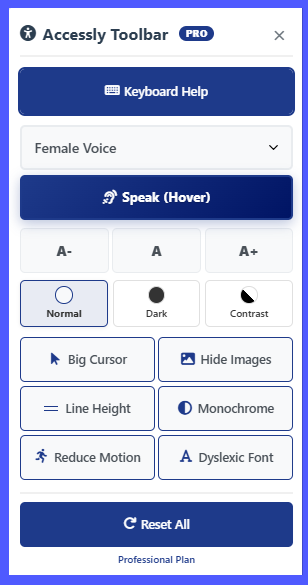
The Accessly Toolbar is a powerful, user-friendly accessibility control panel
designed to help visitors customize how they view and interact with your website.
All features are clearly organized and can be activated instantly without reloading the page.
Keyboard Help: The toolbar includes a dedicated Keyboard Help option
that displays all available keyboard shortcuts, allowing users to fully control accessibility
features using keys such as F12, ESC, and Ctrl + combinations.
Voice Selection: Users can choose their preferred text-to-speech voice
(such as Female, Male, or System default) before activating reading assistance features.
Speak (Hover): When enabled, hovering over any readable text will
automatically read it aloud. This is especially helpful for users with visual impairments,
dyslexia, or reading difficulties.
Text Size Controls (A-, A, A+): These buttons allow users to decrease,
reset, or increase text size across the entire website for improved readability.
Visual Modes: Users can switch between
Normal, Dark, and High Contrast modes to enhance visibility
based on lighting conditions or visual sensitivity.
Additional Accessibility Tools: The toolbar also provides options such as
Big Cursor, Hide Images, Line Height adjustment,
Monochrome view, Reduce Motion, and a
Dyslexic-friendly font — all designed to improve focus and usability.
Reset All: Instantly restores all accessibility settings to their default state,
making it ideal for shared devices or when users want to start fresh.
Pro Tip: All selected accessibility preferences are saved locally in the browser
and automatically applied on future visits — no setup required.
Accessibility Standards Compliance
This toolbar helps websites meet international accessibility standards and legal requirements:
WCAG 2.1 AA
Web Content Accessibility Guidelines Level AA compliance for perceivable, operable, understandable, and robust content.
Section 508
United States federal law requiring electronic and information technology to be accessible to people with disabilities.
ADA Guidelines
Americans with Disabilities Act compliance for digital accessibility in public accommodations and commercial facilities.
Compliance Features: Text alternatives, keyboard navigation, sufficient contrast, resizable text, predictable navigation, input assistance, and compatibility with assistive technologies.
Browser Compatibility
The Accessly Toolbar works with all modern browsers including Chrome, Firefox, Safari, and Edge. Text-to-speech functionality requires browser support for the Web Speech API.
Note: Some features may have limited functionality on older browsers or mobile devices.
Text & Display Controls
A- Page Zoom Control
Adjust the page size to your preferred reading comfort level.
Decrease Size (A-): Makes page smaller for better screen space utilization
Reset Size (A): Returns to standard 100% page size
Increase Size (A+): Enlarges page zoom for better readability
High Contrast
Switch to high contrast mode for maximum visibility and reduced eye strain.
When to use: Bright environments, low vision, color blindness
Features: Black background, white text, enhanced borders
Dyslexic Font
Switch to dyslexia-friendly fonts that make reading easier.
When to use: If letters appear to move or swap
Features: Heavier letter bottoms, distinctive shapes
Interaction & Motion Controls
Reduce Motion
Disable animations and transitions for a calmer browsing experience.
When to use: Motion sensitivity, ADHD, vestibular disorders
Features: Stops all CSS animations, pauses carousels
Big Cursor
Enlarge your mouse pointer for better visibility and tracking.
When to use: Low vision, motor control issues
Features: Different cursors for different elements
Voice Selection
Choose your preferred text-to-speech voice.
Female Voice: Higher-pitched, clear articulation
Male Voice: Lower-pitched, distinct tone
Auto (System): Uses your device's default voice
Speech & Reading Assistance
Speak (Hover)
Enable hover-to-speech functionality for on-demand reading.
How it works: Hover over any text to hear it read aloud
Visual feedback: Text highlights while being spoken
Best for: Learning disabilities, visual impairments
Speak Button
Manual control for text-to-speech reading.
With selection: Reads only highlighted text
Without selection: Reads entire page content
Best for: Specific content listening, proofreading
Reset All
One-click restoration of all settings to defaults.
What it resets: All toolbar settings to original state
When to use: Sharing devices, starting fresh
Also clears: Saved preferences from local storage
Quick Usage Tips
For Better Reading
Combine Dyslexic Font with increased text size for optimal reading comfort.
For Visual Impairments
Use High Contrast + Big Cursor + Speak (Hover) for comprehensive assistance.
For Focus & Concentration
Enable Reduce Motion to minimize distractions from animations.
For Learning
Use Speak (Hover) to hear difficult words pronounced correctly.